 Download Free Assets
If you’re a designer, creator, or student who loves to experiment with visuals, there’s a strong chance you’ve come across the Fotor AI Art Generator — and for good reason. This tool makes it easy to turn simple text prompts or photos into full-blown digital artworks with minimal effort. As someone who uses it regularly in my design toolkit, I’m going to walk you through everything you need to know about this powerful creative engine, answer the most popular questions I’ve seen, and share some pro tips to use it like a legit design expert.
What Is Fotor AI Art Generator and How Does It Work?
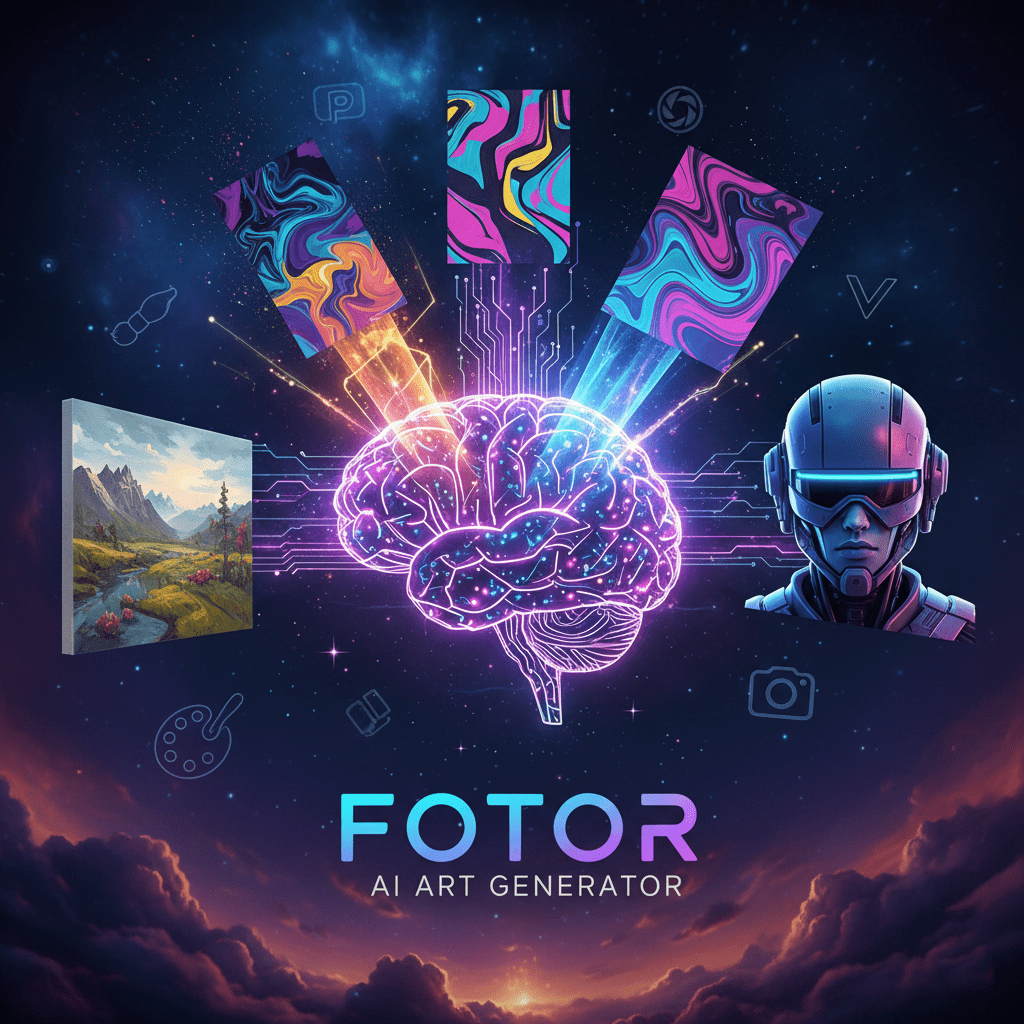
At its core, the Fotor AI Art Generator is an online platform that uses artificial intelligence to generate art from two main inputs: text prompts (you type what you want) or reference images (you upload something and transform it). The workflow is refreshingly simple: you enter your idea (for example- “vibrant cyberpunk cityscape at sunset in a neon palette”), choose a style (pop-art, watercolor, 3D, oil painting, etc.), and press “Generate”. The AI then crunches the prompt and delivers multiple versions of the image. The site says that you can also refine your result by editing the generated images (crop, upscale, edit details) directly in Fotor’s interface.
What makes it appealing for designers: you get high-quality output without complex software setups, and you can iterate very fast. Because you’re not starting entirely from scratch, you save time on concepting and get to focus more on refining and designing around the result.
The Power of Generative Fill and Smart Retouching
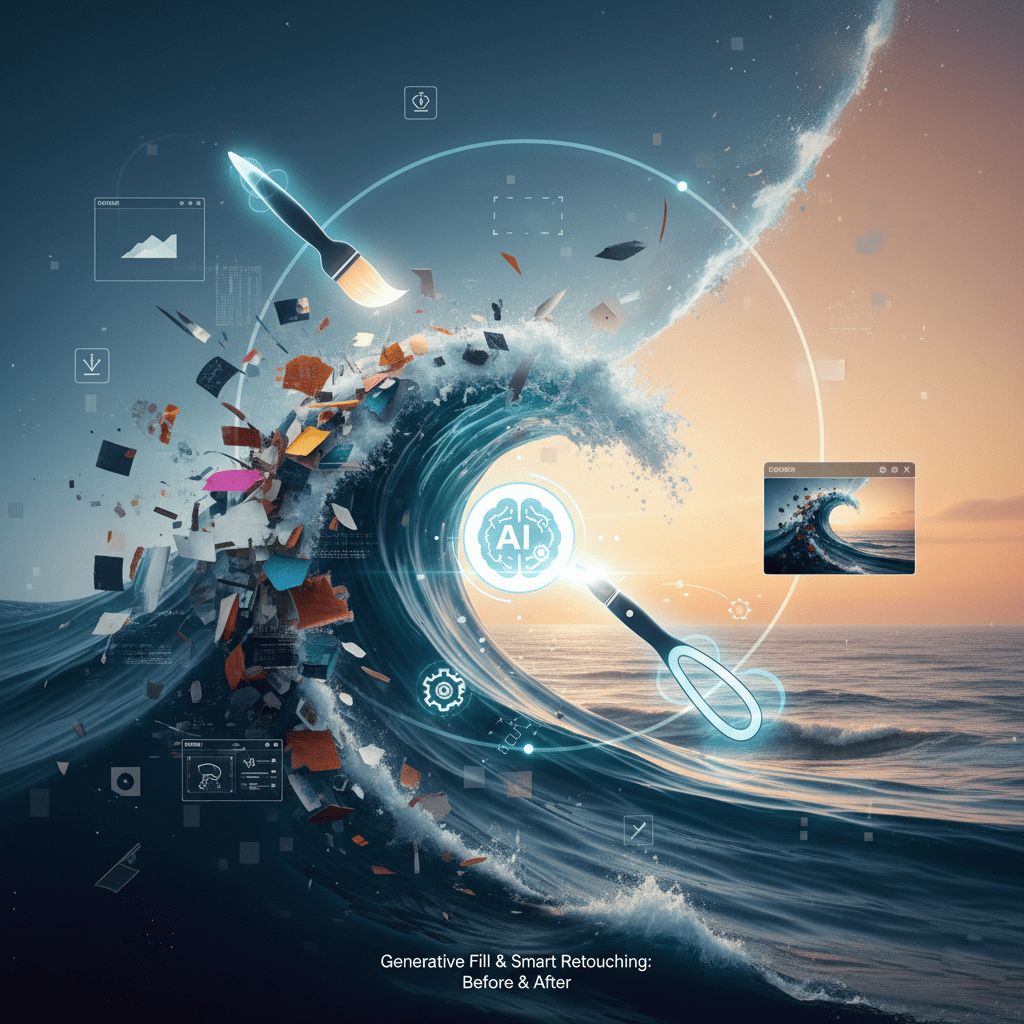
Although “fill” and “retouching” are more common in photo-editing apps, with the Fotor AI Art Generator you get a kind of hybrid power: you generate an image, then you refine it. Think of it as “generate + polish” rather than only “generate”.
For example, designers often use it to create a complex background texture, then bring that texture into a traditional editing workflow (Photoshop or Illustrator) and apply retouching: adjusting lighting, color grading, contrast, and overlaying typography or graphics.
The generator supports multiple art styles: oil painting, watercolor, ink, surreal, cyberpunk, pop art, minimalism— you name it. You choose your aspect ratio, number of image versions, and you can even add “negative prompts” (things you don’t want) to refine the outcome.
For design students, this is huge: you can produce an original asset for your portfolio, tweak it without starting from zero, and present something that visually pops.
How AI Shortcuts Are Saving Hours for Designers

Here’s where the real value kicks in. I’ve used Fotor’s AI Art Generator in real-world workflows, and it’s become a go-to for these reasons:
- Rapid concept generation: Instead of sketching 10 rough ideas, I type 2–3 prompts and get visual directions instantly.
- Style testing: Want to see how your visual would look in a neon cyberpunk vs. a vintage watercolor? Generate both in minutes and compare side by side.
- Background creation: Need a complex backdrop for a poster, social graphic, or packaging concept? Generate it, then drop it into your layout.
- Client presentations: Rather than explaining your concept verbally, you show an AI-generated mockup. Clients respond faster when they see rather than imagine.
- Iteration freedom: You can tweak prompt terms, styles, aspect ratio, and generate a fresh batch in seconds. No need to wait days.
Because of these shortcuts, designers and students can free up their time for the creative decisions (composition, typography, message) rather than laboring over pixel-level details from the get-go.
Pro Editing Tricks Using Fotor’s AI Tools
Okay, you’re on board with the speed and style power. Now let’s go deeper into how you use Fotor like a pro:
1. Start with a strong prompt.
Use subject-environment-style-quality as guideposts. Eg: “a futuristic city skyline at dusk, neon lights reflecting on wet pavement, cinematic lighting, ultra-wide angle, 4K”. That gives the AI something rich to work with.
2. Choose your aspect ratio and count wisely.
If your final deliverable is a social media post, pick square or vertical. If it’s a desktop background or meant for printing, go wide or custom.
3. Upload reference images (image-to-image) when you want control.
If you have a brand color palette or initial sketch, upload it and ask the AI to “refine in pixel-art style” or “translate to watercolor”.
4. Use negative prompts to avoid unwanted elements.
If you dislike “cartoonish”, “low-res”, “text overlay” etc., tell the AI: “–no cartoon, –no text, –no grain”. Helps polish the output.
5. After generation: tweak it in Fotor’s editing suite.
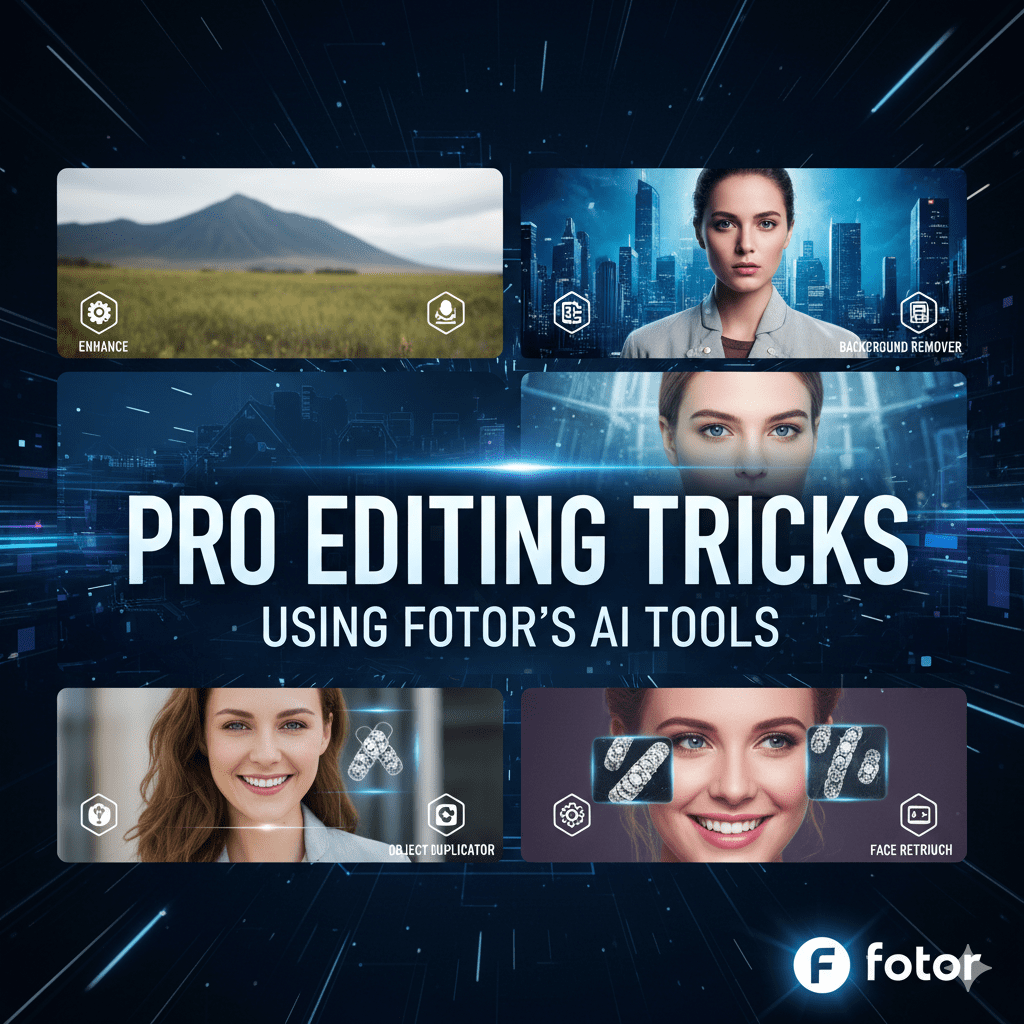
Use the AI Upscaler (to sharpen the result), background remover (if you need isolated subject), color enhancer. Then bring into Photoshop/Illustrator to overlay text, branding or finalize for production.
6. Save smart and layer your design workflow.
Keep your AI-generated image as a background or texture layer. Then build typography, logos, overlays on top. This maintains editability (very important for client work).
Frequently Asked Questions About Fotor AI Art Generator
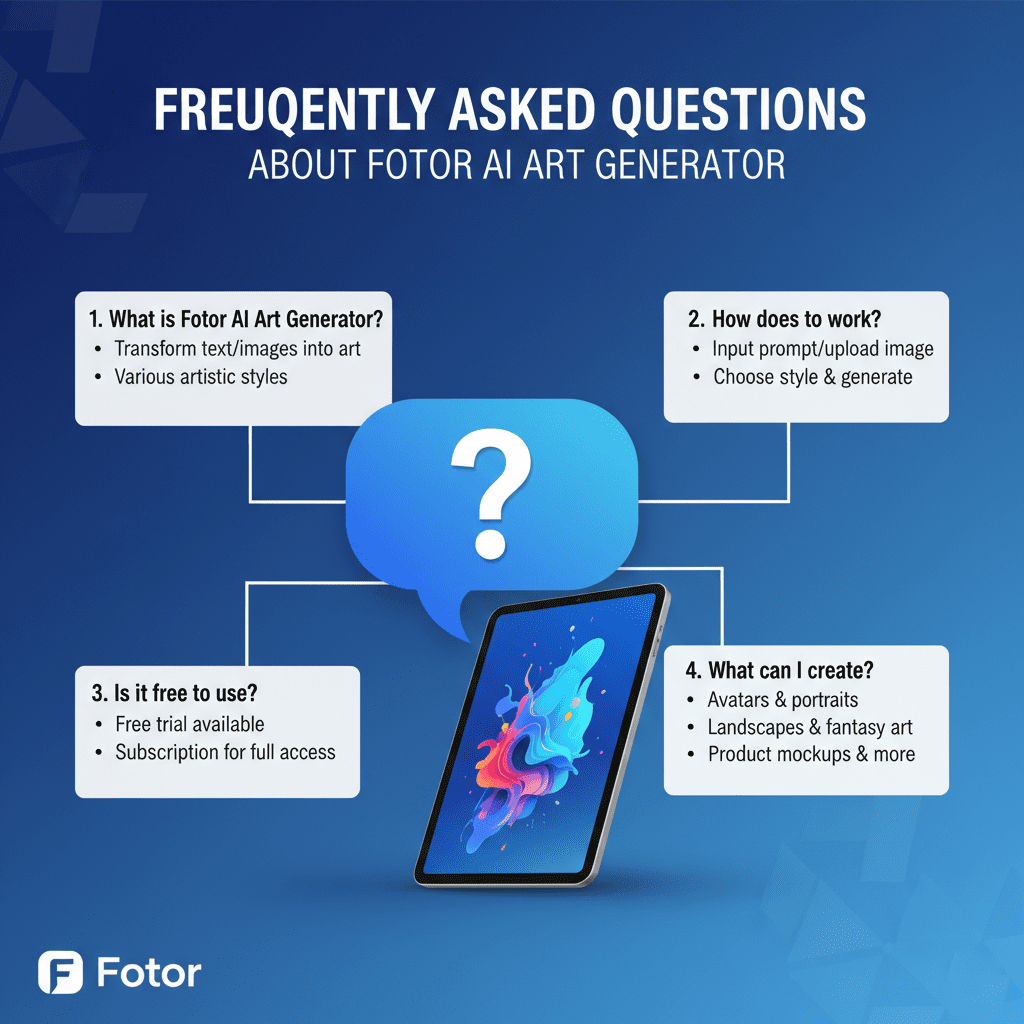
Here are the most common questions I hear — with clear, simple answers:
Q: What type of art can Fotor’s AI art generator create?
A: A broad range: digital paintings, illustrations, photo-realistic scenes, surreal/fantasy, pop art, abstract, anime, even 3D-render style art.
Q: Is there a free version of Fotor’s AI Art Generator?
A: Yes. You get free credits to start generating (for example: eight free artworks) and you can earn additional credits by logging in daily, sharing, or referring friends.
Q: Do generated images have watermarks?
A: With Fotor, the free credits version allows downloads without watermarks. That’s a big plus for portfolio and design use.
Q: Can I sell or commercialize the artwork generated?
A: This depends on Fotor’s terms of service and licensing. Always check the latest user agreement. Many users report that the platform allows commercial use, but with proper credit/license review.
Q: What level of design experience do I need?
A: Barely any to start. The interface is beginner-friendly. But for advanced results and smart workflows, design experience helps you craft better prompts, edit further, and integrate the outputs professionally.
Q: Is it better than traditional design tools (Photoshop, Illustrator)?
A: It’s different, not necessarily “better”. It excels at rapid ideation and background generation. But for final polish, brand consistency, typography, vector work — traditional tools still shine. Think of Fotor AI Art Generator as a powerful partner in your design workflow.
Why This is Called an Age of AI
We’re edging into a new era where AI tools like Fotor’s are not just nice-to-have — they’re becoming a must for designers and students who want to stay competitive. Here’s why this age is shaping up to be a defining age:
- Demand for visuals is skyrocketing: With social media algorithms favoring standout graphics, designers must produce more, faster.
- AI tightens the feedback loop: No longer waiting hours or days for drafts — you iterate in minutes and test multiple design directions instantly.
- Hybrid workflows dominate: Designers will combine AI-generation + manual refinement. Tools like Fotor empower visual creation and then it’s up to you to refine the concept.
- Cost & barrier drop: Free or low-cost AI tools mean students, freelancers, small agencies all have access to creative horsepower.
- New roles & skills emerge: “Prompt designer”, “AI-flow integrator”, “rapid visual director” — these are becoming real titles. Mastering tools like Fotor now sets you up for those roles.
If you adopt AI-powered workflows in this era, you’ll not just keep up — you’ll lead. You’ll produce high-impact visuals, stay agile, and bring fresh creative energy to clients, projects, and your portfolio.
Final Thoughts
The Fotor AI Art Generator is more than just a fun toy — it’s a professional-grade design asset. For U.S. graphic designers and design students, it offers a way to quickly prototype, generate, and refine visuals with serious polish. Use it to ideate faster, test styles, build backgrounds, and integrate into your overall design toolkit.
Start simple: write an interesting prompt, generate a few versions, pick the one you like, and then add your own branding, typography, or layout in your design software. With a little practice, you’ll move from “That looks okay” to “That’s pro-level design”.
Go ahead — give Fotor a try today and let your creative ideas light up the screen. Your next standout project might just begin with a text prompt. 💥